



What happened to Android Pay? What is Google Pay?
Google Pay is the new version of Android Pay! Everyone with compatible devices should see them update automatically. Your day-to-day usage doesn't need to change at all.
Will Google Pay work with my Monzo prepaid card?
No, Google Pay only works with the Monzo debit card. Once you upgrade to a current account, you’ll be able to add your new hot coral debit card to your Google Pay wallet.
How do I make my Monzo card the default card?
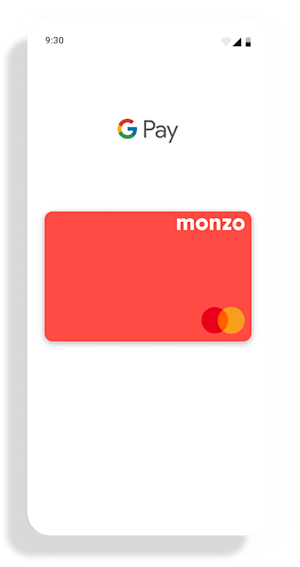
Open your Google Pay app and drag your hot coral Monzo card to the front of your wallet.
Can I still use Google Pay if I freeze my Monzo card?
No, when you freeze your Monzo card it prevents any payments from being made using your card. Once you unfreeze it, you'll need to make your Monzo card the default card in Google Pay again.
How much can I spend using Google Pay?
There is no limit on Google Pay transactions, but some merchants apply the contactless limit and will only accept payments of up to £30. Transactions made in-app are not limited.
What happens if I lose my phone?
If your phone’s been lost or stolen, use (Find My Device)[https://play.google.com/store/apps/details?id=com.google.android.apps.adm&hl=en_GB] to lock it. You can then secure it with a new password, or erase your personal data.
What happens if I lose my Monzo card?
If you freeze your card from within the app, you won’t be able to use your phone to make Monzo payments through Google Pay.
If you find your card and defrost it, you’ll be able to use Google Pay again. Just remember, freezing your card will remove it as the default card in your Google Pay wallet, so you’ll have to drag it to the front again after you defrost it.
If you need to order a replacement, your new card will automatically be added to your Google Pay wallet once it arrives and is activated. There’s no need to manually update! You'll need to drag it to the front of your Google Pay wallet again to make it the default.
How do I know if my device supports Google Pay?
You can use Google Pay on most Android™ devices, as long as they run Android KitKat® 4.4 or above and have near-field communication technology (NFC).
Where can I use Google Pay? Can I use it abroad?
Google Pay can be used anywhere that accepts contactless payments, on transport and in shops, restaurants and cafes around the world.
Can I use Google Pay to pay in an app?
Yes! Whether you’re ordering dinner from Deliveroo or buying gig tickets on Dice, select Google Pay at checkout to pay with Monzo quickly.
Is my card information protected?
When you use your phone to pay in store, Google Pay doesn’t send your real card number to the merchant. Instead, a single-use account number is used to represent your account information, which ensures your card details are kept safe and secure.
How do I stop getting two notifications for every payment I make?
Both Google Pay and Monzo send instant spending notifications, which means you’ll be notified twice every time you pay with Monzo using Google Pay.
You’ll have to turn off either Monzo or Google Pay notifications completely if you’d rather not be reminded twice about your payday splurge or late night kebab.